
Anúncios
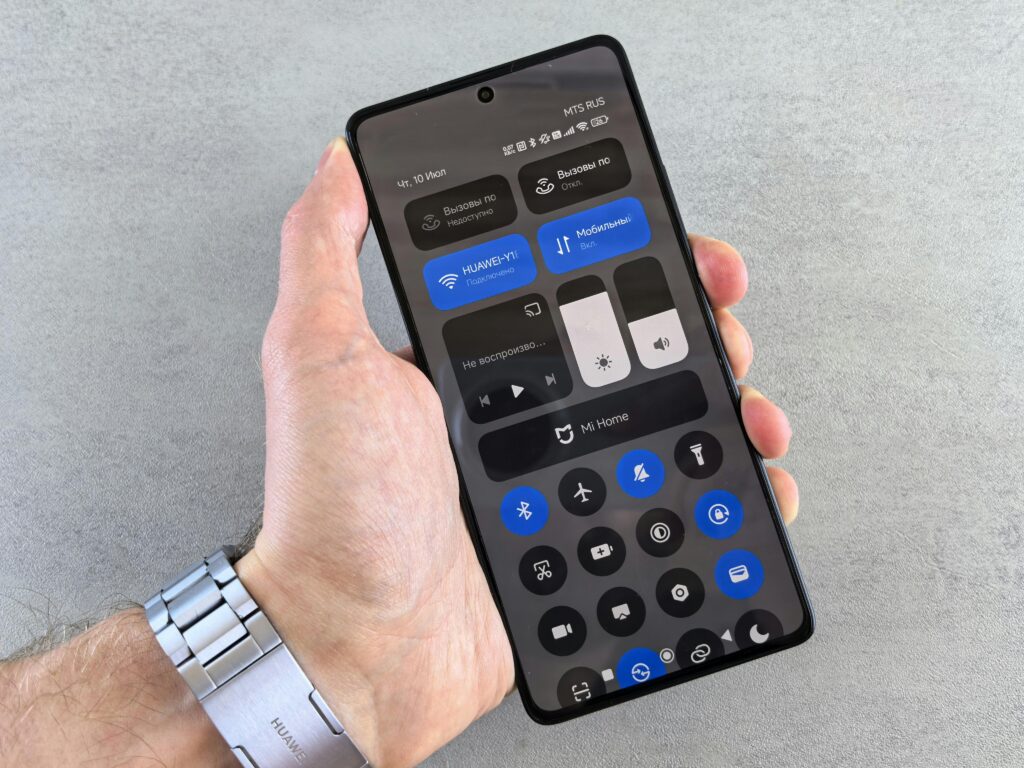
Your smartphone can easily replace traditional remote controls for TVs, streaming devices, air conditioners, and more, using built-in infrared sensors or Wi-Fi connectivity.

Gone are the days of juggling multiple remote controls or searching under couch cushions for that missing TV clicker. Modern smartphones have evolved into versatile universal remotes capable of controlling virtually any compatible device in your home.
Anúncios
Whether you’re adjusting your smart TV, dimming lights, or switching inputs on your sound system, your phone provides a convenient all-in-one solution.

The transformation happens through two primary technologies: infrared (IR) and Wi-Fi connectivity. Each method offers distinct advantages depending on your device compatibility and home setup. Understanding how these technologies work and which apps best leverage them will help you create a seamless smart home experience right from your pocket.
Anúncios
📱 Understanding the Two Control Methods: IR vs Wi-Fi
Before diving into setup processes, it’s essential to grasp the fundamental difference between infrared and Wi-Fi remote control technologies. Each has unique characteristics that determine which devices you can control and how.
Infrared technology works similarly to traditional remote controls, sending light signals in wavelengths invisible to the human eye. Your phone must have an IR blaster—a small component that emits these signals. When you press a button in a remote control app, the IR blaster sends the corresponding signal to your device. This method requires line-of-sight, meaning your phone needs to point toward the device you’re controlling.
Wi-Fi connectivity takes a different approach entirely. Instead of light signals, commands travel through your home network to smart devices connected to the same Wi-Fi. This method doesn’t require line-of-sight and often provides additional features like voice control, automation, and integration with smart home ecosystems.
Which Smartphones Have IR Blasters? 📲
Not all smartphones include infrared capabilities. While this feature was more common several years ago, many manufacturers have removed IR blasters to make phones slimmer. However, several brands continue offering this functionality:
- Xiaomi and Redmi series (most models from recent years)
- Some Huawei and Honor devices
- Select LG phones (though less common in newer models)
- Certain Samsung Galaxy models (primarily older generations)
To verify whether your phone has an IR blaster, check the manufacturer’s specifications or look for a small dark plastic window at the top edge of your device—this is typically where the IR sensor sits.
🎯 Setting Up Your Phone as an IR Remote Control
If your smartphone includes an IR blaster, transforming it into a universal remote is remarkably straightforward. The process typically involves installing a compatible app and pairing it with your devices.
Most phone manufacturers with IR capabilities include a pre-installed remote control app. Xiaomi devices come with “Mi Remote,” while other brands offer similar native applications. These apps generally feature extensive databases of device codes for thousands of brands and models.
Step-by-Step IR Remote Setup Process
Launch your remote control app and select the option to add a new device. You’ll typically choose from categories like TV, air conditioner, set-top box, projector, or DVD player. Next, select your device brand from the provided list. The app will then guide you through a pairing process.
During pairing, the app sends test signals to your device. Point your phone toward the device and follow on-screen prompts to confirm whether commands are working. Once the correct code set is identified, you can customize button layouts and save the remote profile for future use.
Recommended IR Remote Control Apps 🌟
While manufacturer apps work well, third-party options often provide enhanced features and broader device compatibility:
- AnyMote Universal Remote: Comprehensive database supporting over one million devices with customizable macros and automation features
- Sure Universal Remote: Clean interface with smart home integration and widget support for quick access
- SURE Universal Remote: Extensive compatibility with TV, media players, and home appliances
- Mi Remote Controller: Originally for Xiaomi devices but works on other IR-enabled phones
These applications typically offer more customization options than stock apps, including macro creation (executing multiple commands with one tap), scheduling functions, and personalized remote layouts.
📶 Controlling Devices Through Wi-Fi Connectivity
Wi-Fi-based control opens significantly broader possibilities, especially for modern smart TVs and streaming devices. Since this method doesn’t require an IR blaster, virtually any smartphone can function as a remote control for Wi-Fi-enabled devices.
Smart TVs from major manufacturers like Samsung, LG, Sony, and TCL typically include companion apps designed specifically for their products. These apps communicate directly with your TV over your home network, offering functionality that often surpasses physical remotes.
Manufacturer-Specific Smart TV Apps
Samsung SmartThings: This comprehensive app controls Samsung Smart TVs along with other compatible smart home devices. Beyond basic remote functions, it enables content casting, voice control through Bixby or Google Assistant, and integration with Samsung’s broader smart home ecosystem.
LG ThinQ: LG’s solution provides full remote control capabilities for webOS TVs, including mouse pointer functionality that mimics the Magic Remote. The app also manages other LG smart appliances and offers AI-powered features for personalized recommendations.
Android TV Remote Control: Google’s official app works with any Android TV or Google TV device, including Sony Bravia, Nvidia Shield, and Chromecast with Google TV. It features voice search, touchpad navigation, and keyboard input for easier text entry.
Roku Mobile App: Controls all Roku devices with private listening through headphones, voice search, and the ability to browse and launch channels directly from your phone.
Universal Wi-Fi Remote Solutions 🔧
Several applications bridge multiple platforms and brands, creating unified control experiences across diverse device ecosystems:
Unified Remote: Transforms your smartphone into a wireless keyboard, mouse, and media center remote for computers and smart TVs. It supports over 90 programs including media players, presentation software, and system controls.
Unimote: Provides remote control for smart TVs, streaming sticks, and other connected devices through Wi-Fi. The interface is intuitive with customizable layouts for different room configurations.
SURE Universal Remote: Combines both IR and Wi-Fi capabilities, making it versatile for controlling traditional and smart devices through a single interface.
🎮 Controlling Streaming Devices and Media Players
Popular streaming platforms have developed dedicated remote apps that often provide superior functionality compared to physical remotes included with devices.
The Amazon Fire TV app controls all Fire TV devices and Fire TV sticks. Beyond standard navigation, it offers Alexa voice commands, quick app launching, and keyboard functionality for searches and login credentials. The app can also mirror content from your phone to your TV.
Apple TV Remote comes built into the iOS Control Center for iPhone and iPad users. It replicates all functions of the Siri Remote, including touchpad gestures, Siri voice control, and playback management. The integration feels seamless within the Apple ecosystem.
Google Home manages Chromecast devices along with broader smart home controls. While not a traditional remote interface, it enables casting content from thousands of compatible apps and offers voice commands through Google Assistant.
💡 Advanced Features and Automation Possibilities
Once your phone is set up to control your devices, you can explore advanced features that traditional remotes can’t match.
Creating Macros for One-Touch Control
Many remote control apps allow creating macros—sequences of commands executed with a single tap. For example, you might create a “Movie Night” macro that turns on your TV, switches to the correct HDMI input, powers on your soundbar, and dims smart lights—all automatically.
This functionality proves particularly valuable for complex home theater setups where multiple devices need coordinating. Apps like AnyMote and Unified Remote excel at macro creation with intuitive interfaces for building custom command sequences.
Scheduling and Automation 🕒
Some applications integrate with smart home platforms like Google Home, Amazon Alexa, or Apple HomeKit, enabling scheduled operations and voice-activated controls. You could schedule your TV to turn on at specific times or create voice commands like “Alexa, start game mode” to activate your TV and gaming console simultaneously.
These integrations transform your phone from a simple remote replacement into a central hub for comprehensive home automation.
🔐 Security Considerations When Using Remote Apps
While incredibly convenient, using your smartphone as a remote control introduces certain security considerations worth addressing.
Always download remote control apps from official sources like Google Play Store or Apple App Store. Third-party app stores may host modified versions containing malware or data collection mechanisms. Verify that apps request only necessary permissions—a TV remote app shouldn’t need access to your contacts or messages.
For Wi-Fi-based controls, ensure your home network uses WPA3 or at minimum WPA2 encryption with a strong password. Devices communicating over unencrypted networks could expose control capabilities to unauthorized users on the same network.
Consider creating a separate guest network for IoT devices and smart home controls. This network segmentation prevents potential security vulnerabilities in smart devices from compromising personal data on your primary network.
🛠️ Troubleshooting Common Remote Control Issues
Even with straightforward setup processes, you might encounter occasional difficulties. Here are solutions to the most common problems:
IR signals not working: Ensure nothing obstructs the path between your phone’s IR blaster and the device sensor. Clean both sensors with a soft cloth, as dust can block infrared signals. Verify you’ve selected the correct brand and device type in your remote app.
Wi-Fi connection failures: Confirm your phone and smart device connect to the same Wi-Fi network. Many routers create separate 2.4GHz and 5GHz networks—some devices only support 2.4GHz. Restart both your smartphone and the device you’re trying to control, then attempt reconnection.
App crashes or freezing: Clear the app’s cache through your phone’s settings menu. If problems persist, uninstall and reinstall the application. Ensure you’re running the latest version, as updates frequently address stability issues.
Delayed response times: Wi-Fi congestion can cause command delays. Try reducing the number of connected devices or upgrading to a dual-band router with better traffic management. Alternatively, restart your router to clear temporary network issues.
📊 Comparing Remote Control Methods
| Feature | Infrared (IR) | Wi-Fi |
|---|---|---|
| Device Compatibility | Traditional TVs, older devices | Smart TVs, streaming devices |
| Requires Line-of-Sight | Yes | No |
| Range | Limited (typically 10 meters) | Entire home network coverage |
| Phone Requirements | Must have IR blaster | Any smartphone |
| Advanced Features | Basic controls only | Voice control, automation, casting |
| Setup Complexity | Simple | Moderate (network dependent) |
| Battery Impact | Minimal | Slightly higher |
🌍 Expanding Beyond Entertainment Devices
While TVs and streaming devices represent the most common use cases, smartphone remote control capabilities extend to numerous other household devices.
Air conditioners and climate control: Many IR remote apps include extensive databases for AC units. This allows temperature adjustments, mode changes, and timer settings directly from your phone—particularly convenient when you’ve misplaced the physical remote.
Projectors and presentation equipment: Control projection systems during presentations without dedicated remotes. This proves valuable in professional settings where seamless transitions matter.
Audio systems and soundbars: Adjust volume, switch inputs, and control playback on compatible audio equipment. Wi-Fi-enabled speakers from brands like Sonos, Bose, and JBL offer dedicated apps with extensive control options.
Smart home hubs: Devices like Samsung SmartThings Hub or Hubitat can be controlled through smartphone apps, which then manage connected sensors, locks, thermostats, and lighting systems throughout your home.
🚀 Future Developments in Smartphone Remote Technology
The evolution of smartphone remote control capabilities continues accelerating with emerging technologies and standards.
Matter protocol integration promises to unify smart home device communication across manufacturers. Once widely adopted, this standard will simplify smartphone control of diverse devices regardless of brand, potentially through single unified applications.
Ultra-wideband (UWB) technology in newer smartphones enables precise spatial awareness. Future applications might automatically detect which device you’re pointing at and switch control contexts accordingly, creating more intuitive interactions.
AI-powered prediction could learn your usage patterns and proactively suggest controls. Imagine your phone preparing your “evening routine” settings as it detects you arriving home, requiring just a confirmation tap.
✨ Maximizing Your Phone Remote Experience
To get the most from your smartphone as a universal remote, consider these optimization strategies:
Organize your remote profiles logically by room or function. Create separate profiles for living room entertainment, bedroom controls, and home office equipment. This organization prevents confusion when controlling multiple similar devices.
Customize button layouts to match your usage patterns. Place frequently used functions like volume and channel controls in easily accessible positions. Most apps allow interface personalization for optimal ergonomics.
Enable quick access through widgets or shortcuts. Many remote apps offer home screen widgets providing instant access to favorite devices without opening the full application.
Regularly update your remote control apps to benefit from expanded device databases, security patches, and new features. Enable automatic updates when possible to maintain optimal compatibility.
Your smartphone’s transformation into a universal remote control represents more than mere convenience—it’s a gateway to streamlined smart home management. Whether using infrared for traditional devices or Wi-Fi for modern smart equipment, the consolidation of multiple remotes into one device you already carry everywhere simplifies daily interactions with technology. As smart home ecosystems continue maturing, your phone’s role as the central control point will only grow more essential and capable.

Toni Santos is a visionary artisan and conceptual designer who channels the beauty of living organisms into structural expression. At Zureste, Toni explores the intricate elegance of insect anatomy, organic flow, and bioinspired design to create art that feels both natural and otherworldly.
Each creation Toni brings to life reflects a harmonic tension between structure and softness, wildness and control — echoing the complex intelligence found in the natural world. From beetle-like silhouettes to root-shaped contours, his work blurs the lines between biology, sculpture, and modern art.
Guided by fascination for metamorphosis, evolution, and pattern in nature, Toni’s pieces embody transformation. His BioLight Collection and conceptual series like Insect Type and Structure Aesthetics offer viewers more than aesthetic value — they present immersive experiences of living design.
As the creative force behind Zureste, Toni invites us to rethink beauty, architecture, and identity through a new lens — one shaped by wings, bones, spirals, and the microscopic poetry of the organic.
His creations reflect:
-
Design deeply rooted in the geometry of life
-
Inspiration from insects, roots, and the unseen natural order
-
A blend of science, spirituality, and visual storytelling
Whether you’re a lover of strange beauty, an admirer of evolution’s artistry, or a creative mind seeking something different, Toni welcomes you into a world where living forms become meaning, and surreal becomes sublime.